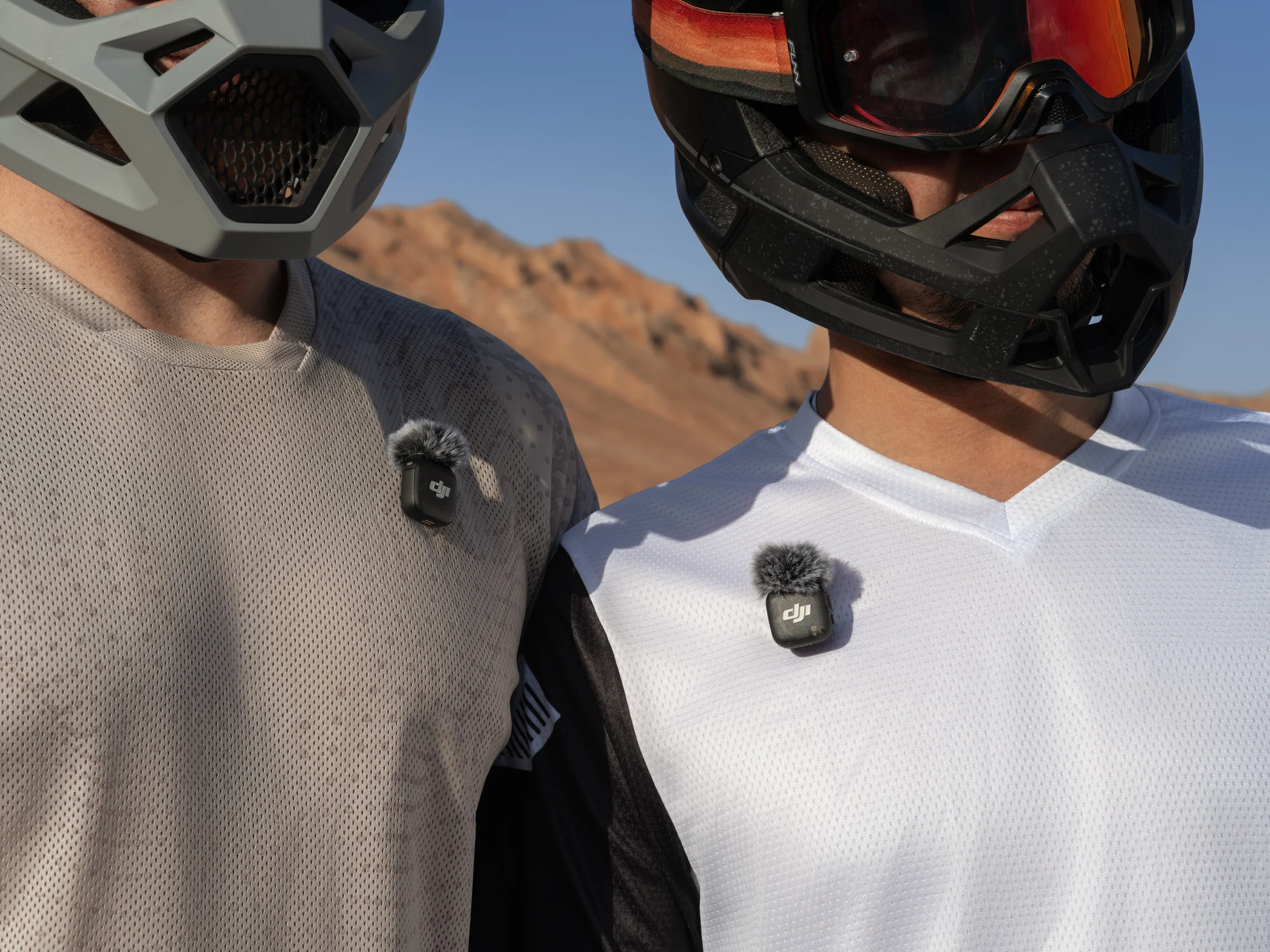
Fix distance and room before buying complexity.
Move the microphone closer, soften reflective surfaces, turn off intermittent appliances, close uncontrolled doors, and keep the recording position consistent. A distant expensive microphone in a hard room still sounds distant.
- Record twenty seconds at performance volume.
- Listen on headphones for hum, HVAC, traffic, clipping, wireless hits, clothing noise, and mouth noise.
- Set conservative gain and repeat the loudest line.
- Record a backup on the camera or transmitter when supported.
- Capture room tone after the final take.
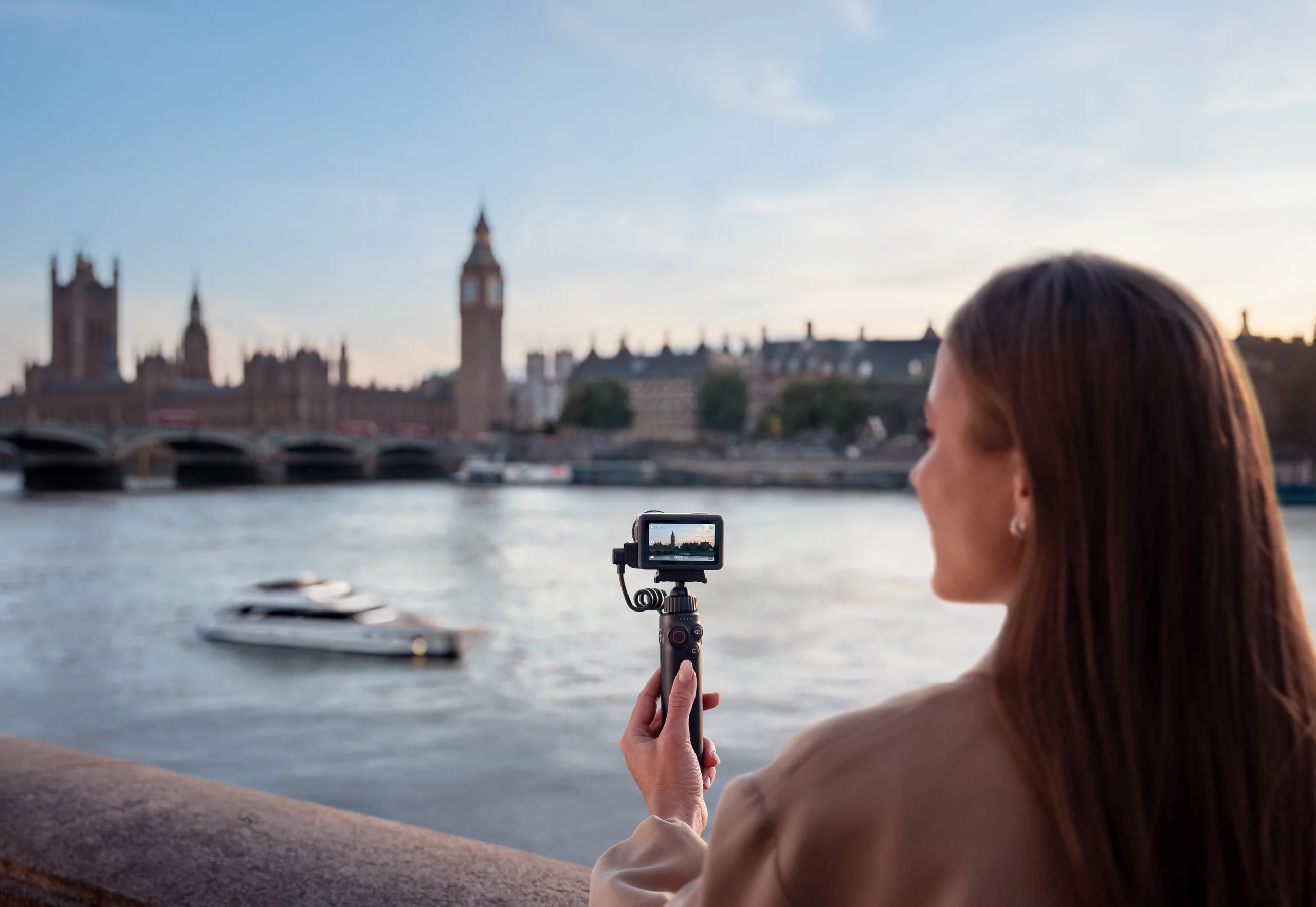
The current shop has an audio gap—plan for it honestly.
Action 6 supports DJI’s OsmoAudio direct connection with supported transmitters, but the Creator Armoury allowlist currently contains no standalone wireless microphone SKU. Do not assume a transmitter is included with the camera. Bring a compatible system you already trust or ask SkyFlow to verify availability, generation, connectors, recording mode, and included pieces.
Audio is thin and echoey.
Bring the microphone closer and reduce hard reflections before reaching for noise reduction.
The shirt rustles.
Change cable and capsule placement, secure fabric contact points, and record another movement test.
Wireless audio drops.
Stop, rescan or change the setup, reduce obstruction and range, and use onboard backup recording when supported.
Make audio easy to sync and repair.
- Name the take aloud when appropriate.
- Clap once in view of every camera.
- Keep each camera recording through short pauses.
- Copy audio with the video before formatting media.
- Log any dropout immediately and record the affected line again.
Sources and verification.
This guide summarizes published manufacturer capabilities and Canadian aviation or privacy context, then adapts them into a practical production method. It does not reproduce the source articles and is not legal advice.
Verify before the take
- Current product compatibility, included items, firmware, and availability.
- Exact location, land or venue permission, people, privacy, weather, and operational rules.
- A recorded camera and sound test under the real conditions.